
How To Use Ready-To-Edit Templates To Create Your Digital Product

One of the best things about Pagewheel is we’ve have created tons of templates to make your work easier.

To use one of our ready-to-edit products, keep following our tutorial!
A graphic with “Use Ready-To-Edit Templates To Create Your Digital Product” text. Underneath is a simple stylized graphic depicting a folder of ready-made content.
Learn how to use ready-to-edit templates!

Choosing Your Product Type

The first step is, in your dashboard, click “Take me to the Product Builder”. This will take you to all the different options for creating a new digital product.
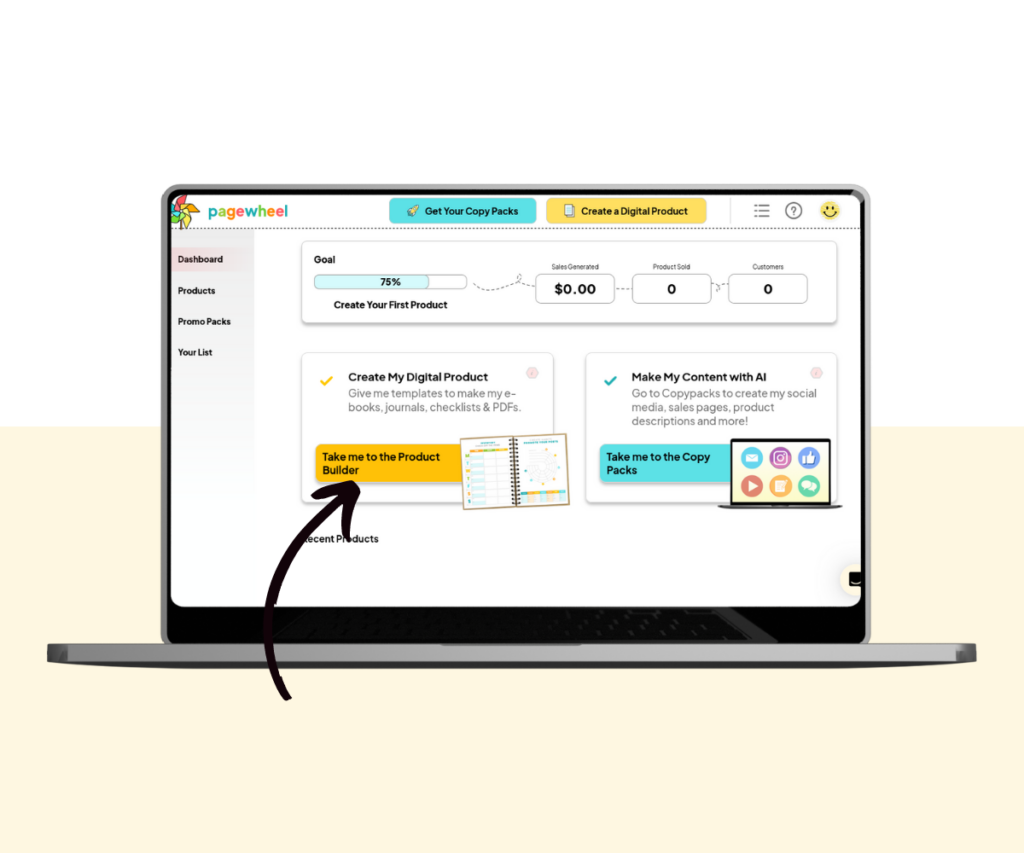
An annotated screenshot showing how to open the Product Builder from Pagewheel’s dashboard.
Click “Take me to the Product Builder”

Once you’ve clicked there, click the option in the middle, “Ready-to-Edit Products”. This will take you to the templates we’ve created for you.
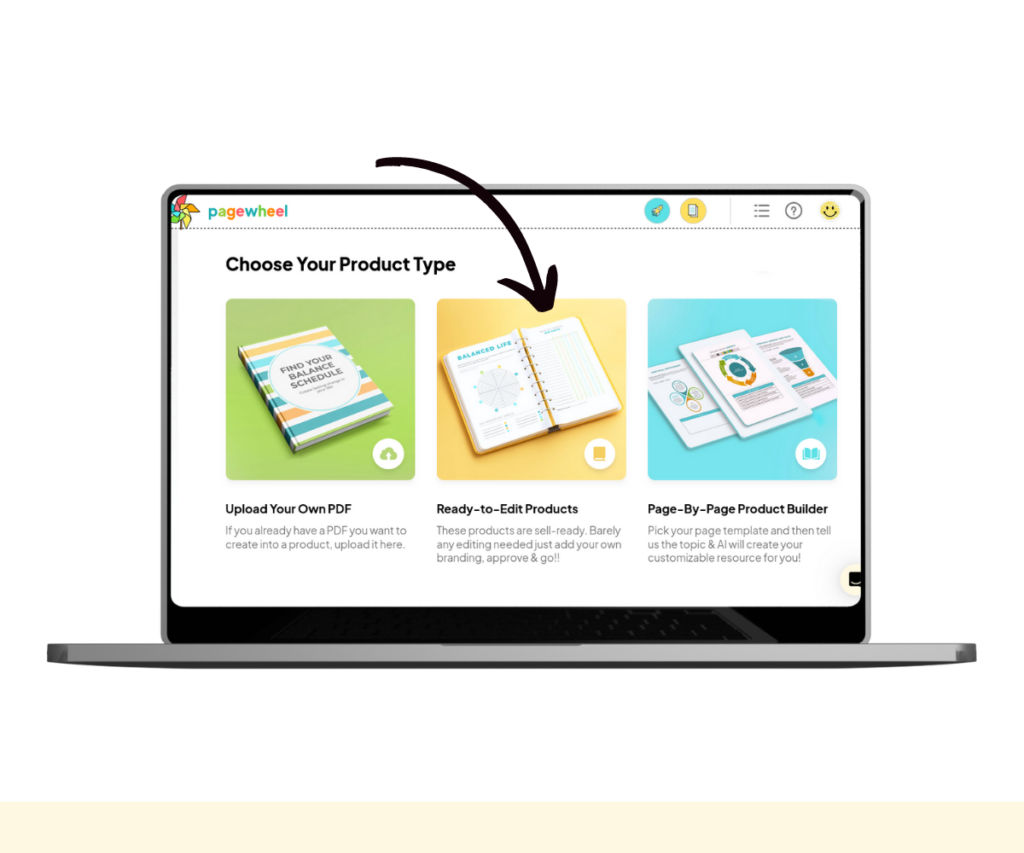
An annotated screenshot showing how to access the “Ready-to-Edit Products”.
Click “Ready-to-Edit Products”

Alternatively, you can upload your own PDF or use the Page-by-Page Builder to create a new product.

Using the Template Library

From the template library, you can create a new awesome product using Pagewheel’s ready-to-go content.

Look up specific content batches by niche, topic, or a specific keyword. You can select up to six.

Isn’t that so simple?! Once you’re ready, click “I am ready to edit it”.
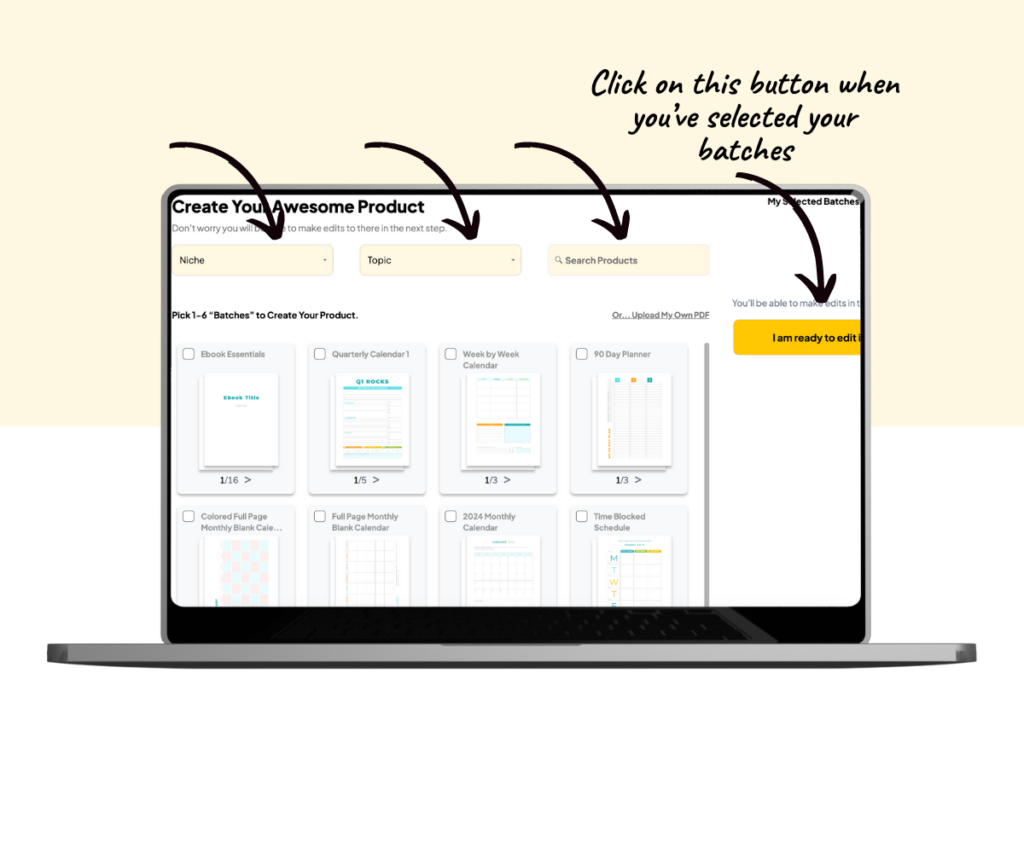
An annotated screenshot showing how to choose pages batches and add them to the product.
Choose page batches then confirm

In this next step, you can brand your product with your preferred color theme.

You can also change the main text color, and choose a font for the headings.
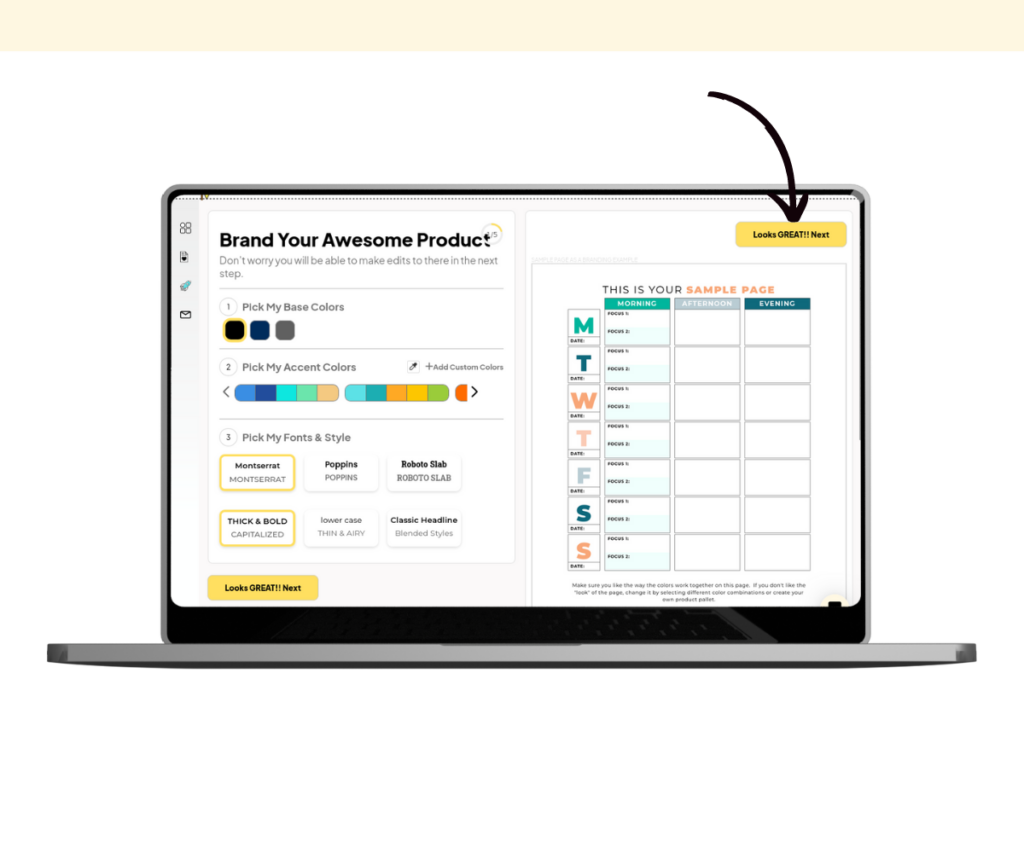
An annotated screenshot showing how to save your changes.
Click next to save your changes

After making your choices, click the next button to continue editing your new product!

You’ll then be able to mix and match, duplicate, or delete pages. You can even add your own PDFs.

Keep following the steps. You’ll need to publish your product to generate the PDF.

More Pagewheel Help Topics

Similar Posts

  • How to Become a Pagewheel Affiliate

    You can earn recurring commissions on referrals sent to Pagewheel. To manage your affiliate account, simply log in to the affiliate dashboard. From there, you can track your referrals, monitor earnings, and view payouts all in one place. Accessing Affiliate Link Sharing Settings To join the Pagewheel affiliate program, you first need to sign up…

  • How to Download an Invoice on Pagewheel

    You can download an invoice on Pagewheel by going to the account settings. Accessing Account Settings You can access your account settings by clicking your avatar (account settings icon) in the top right corner.  You’ll notice the “Account Settings” text as you hover over the avatar. Account Settings Overview Here you can update various items…

  • How to Create Email Sequences – in Minutes

    You have heard “business experts” talk about the importance of having people on your email list, and while that is TRUE. Your list is ONLY powerful if you are mailing to your list regularly. According to BizGenius 60% of all businesses only email their potential customers 2-5 times a month. That is NOT ENOUGH! BUT!!…

Leave a Reply

Your email address will not be published. Required fields are marked *